Direct application proxy
Enter SOCKS5 port 1080 or HTTP port 1088 in one browser, command, or application.
Direct proxy guideHKU VPN for Docker and native Windows
Run OpenConnect with Microsoft Authenticator MFA inside a Docker container — or natively on Windows, without WSL — then use the HKU tunnel through local SOCKS5 and HTTP proxies. Access HKU Library, campus SSH, and remote desktop without replacing your computer's default route.
hkuvpn establishes HKU as a local upstream first. Applications can use it directly, or a compatible rules client can send only HKU destinations to it while every other policy stays unchanged.
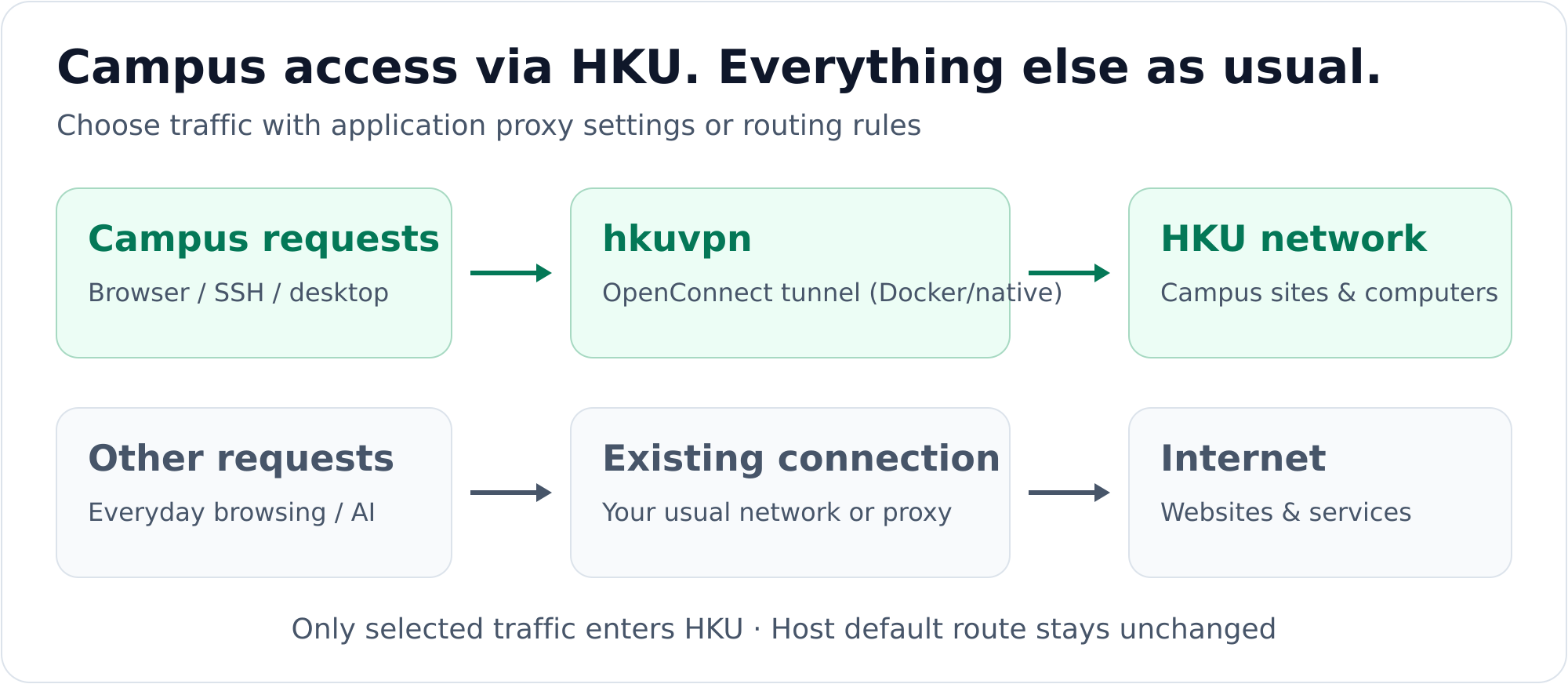
Complete this path before configuring Clash, Surge, SSH, or remote desktop. The full README covers Docker Desktop, Linux, Windows WSL2, Bash, Zsh, and Fish.
First goal: make the final curl command return HTTP response headers through the local HKU proxy.
On Windows? There is a desktop app for it — no
Docker, no WSL, no terminal window. Download
HKUVPN-windows-<version>.zip from the
releases,
unpack it, run bin\get-tools.ps1 once as
administrator, and start HKUVPN.exe. The proxy setup
below is the same for both editions. The steps in Chinese:
START-HERE.zh-CN.md.
Colima is the lightweight recommended runtime. Docker Desktop also works.
brew install colima docker
colima start --cpu 2 --memory 2 --disk 20 \
  --vm-type vz --mount-type virtiofs
docker infoBuild the local image directly from the public repository.
git clone https://github.com/jialiangZ/hkuvpn.git ~/hkuvpn
cd ~/hkuvpn
docker build -t local/vpn docker/
Replace YOUR_PORTAL_PIN with the static HKU Portal PIN,
not the current six-digit Authenticator code. Replace the example
UID in ~/.vpn/hku.env as well.
mkdir -p ~/.vpn
cp ~/hkuvpn/docker/examples/hku.env.example ~/.vpn/hku.env
printf '%s' 'YOUR_PORTAL_PIN' > ~/.vpn/hku.pass
chmod 600 ~/.vpn/hku.passHKU_USER=youruid@connect.hku.hkConnect to the official HKUVPN server, then enter the current six-digit code at Response: — or run detached and send the code with --mfa.
~/hkuvpn/docker/bin/hkuvpn

# background alternative
~/hkuvpn/docker/bin/hkuvpn -d
~/hkuvpn/docker/bin/hkuvpn --mfa 123456Keep the VPN terminal open while running this test.
curl -x socks5h://127.0.0.1:1080 \
  -I https://www.hku.hk/

# layered health check (exit 0 = all ok)
~/hkuvpn/docker/bin/hkuvpn --statusThe local HKU proxy is useful with or without a separate proxy or rules client.
Enter SOCKS5 port 1080 or HTTP port 1088 in one browser, command, or application.
Direct proxy guideAdd HKU as one local upstream and leave direct, AI, and other VPN policies unchanged.
Rules-client examplesReach a campus host through HKU, or reverse-forward an existing client proxy to a remote coding agent.
Remote-access guideInstallation details, routing examples, reverse SSH, reliability, and troubleshooting live with the source repository.